This screen recording upscaler takes a capture of an app, a website or a desktop and returns it at 1080p, 2K or 4K with text, icons and window edges kept sharp instead of smeared. It uses the same line-art model as anime, because interface pixels behave like drawn lines and flat colours.
Last updated:
OriginalUpscaled
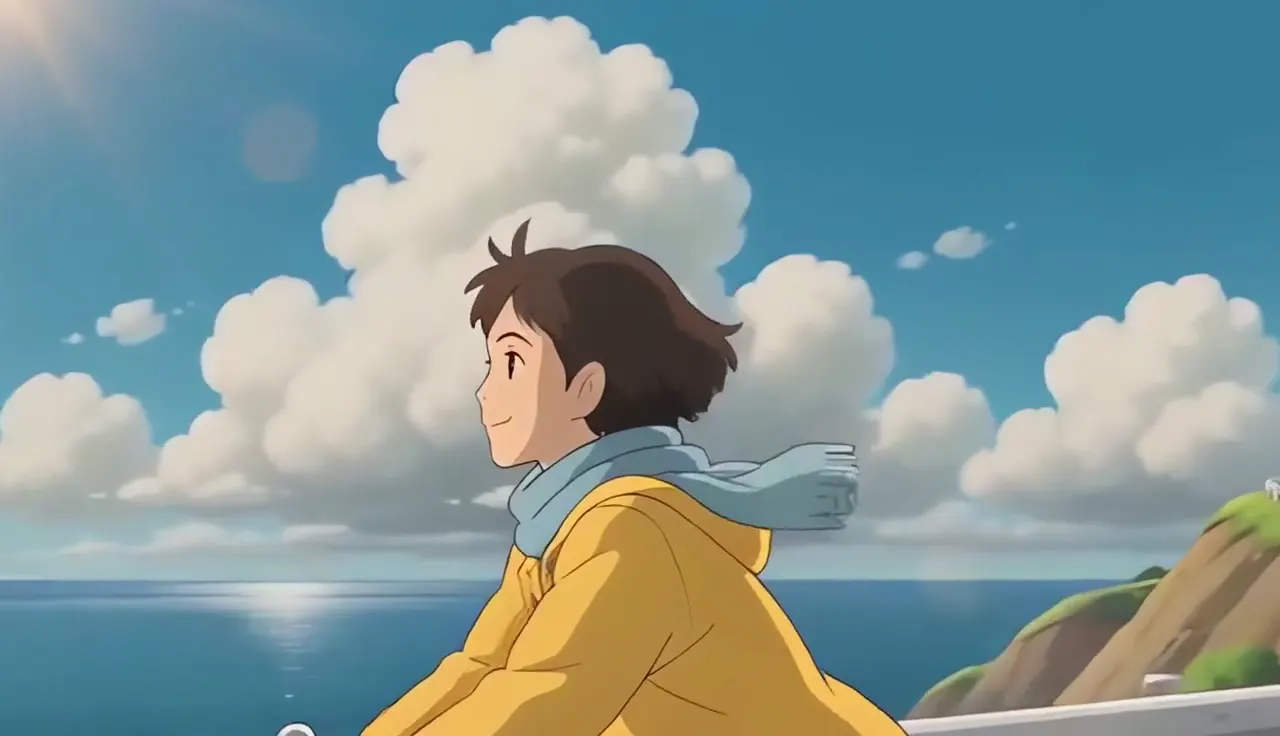
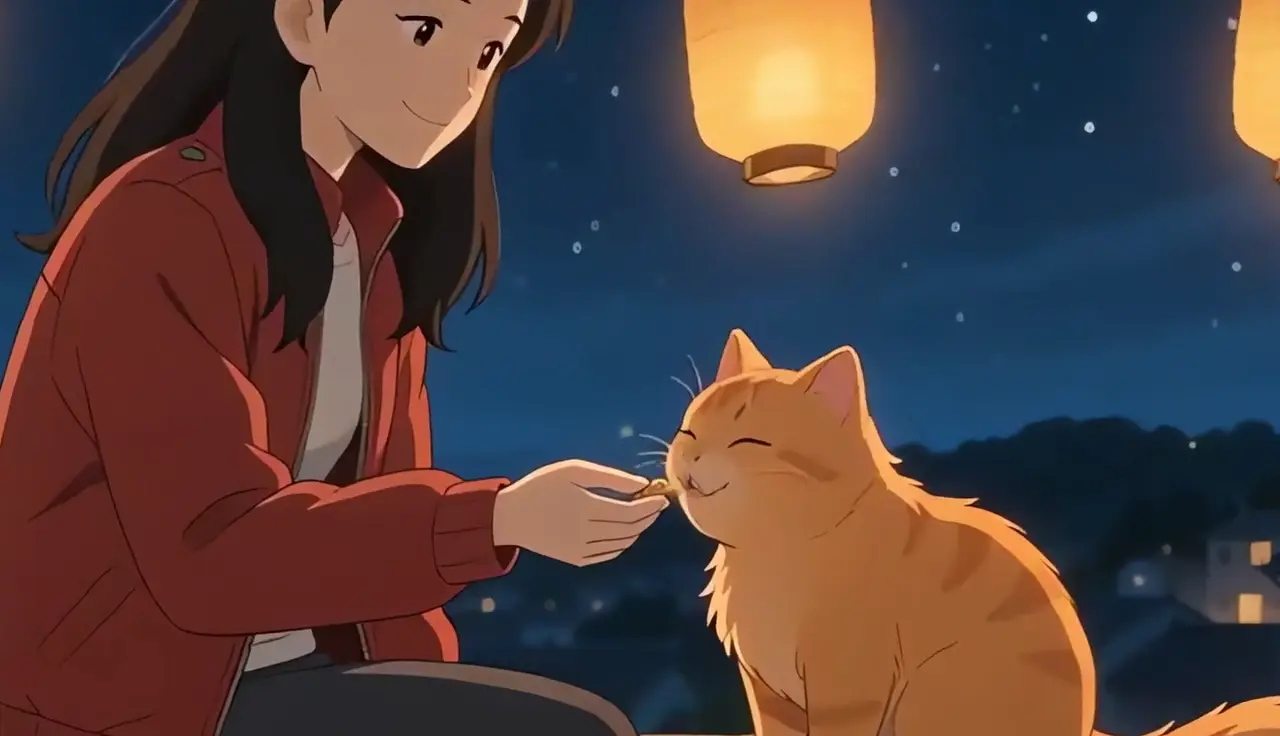
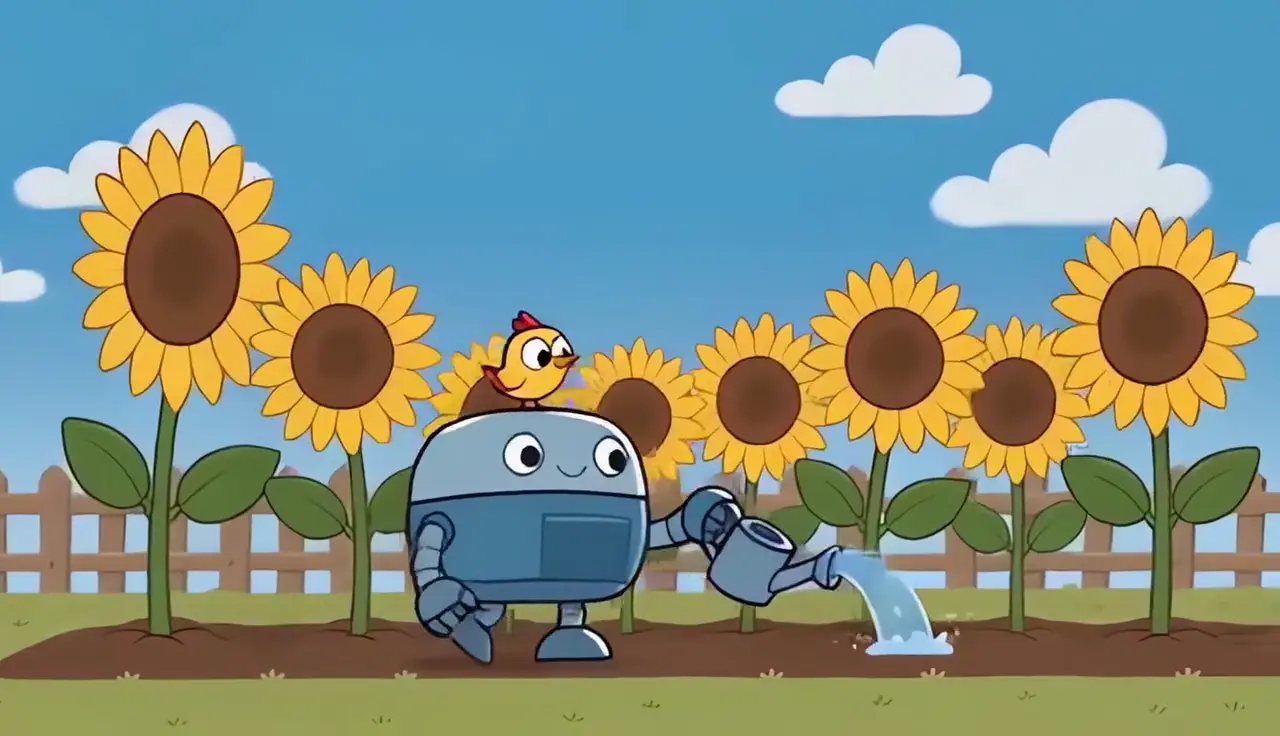
Real result: a soft 640×368 clip run once through Anime, cartoon & screen at 4K. Drag to compare.
1Your video
2How to upscale it
Line-art model: clean outlines, flat colours kept flat, sharp text and UI edges; compression noise and banding cleaned up as it upscales.
Upload a clip to see its exact price.
Your 210 free sign-up credits cover one 10-second clip at 1080p.
Real results from this studio
OriginalUpscaled
Anime, cartoon & screen · 2K
OriginalUpscaled
Anime, cartoon & screen · 1080p
Good for
Tutorials recorded at a small window size that look blurry full screen
Software demos for a course, a help centre or a product page
Old walkthroughs whose source project is gone
Slide recordings and code walkthroughs where small text must stay readable
How it works
1
Upload the recording
MP4, MOV, MKV, WebM or AVI up to 50 MB. Recordings from most screen tools are MP4 or MOV already; MKV, WebM and AVI are converted to MP4 first.
2
Pick "Anime, cartoon & screen" and a size
This page opens on it. Choose 1080p, 2K or 4K; the studio measures the file and shows the price before you start.
3
Download the sharper MP4
You get an MP4 (H.264) with the same length, frame rate and narration, ready to re-upload or replace in your editor.
Why screen captures blur when enlarged
A screen recording is mostly hard edges: one-pixel strokes in letters, thin borders, icons on flat panels. Simple resizing averages those pixels into grey fuzz, and the encoder adds ringing around every letter. The line-art model treats each stroke as an edge to redraw at the new size and keeps panels flat, so menus and code stay crisp and the background does not shimmer. Compression noise around text is cleaned in the same pass.
Which size fits where the video is going
Pick 1080p for a capture made at 720p or a small window, headed for a video platform or a help page; that alone usually makes body text readable. Pick 2K when viewers will watch on large monitors or you plan to zoom into part of the screen in your edit. Pick 4K if the rest of your project is 4K and the capture must match it. Text that was too small to read in the original, a few pixels tall, cannot be recovered; the model sharpens what the recording holds.
Recording tips for the best result
Record at the highest quality your tool offers and at 30 fps; a static desktop gains nothing from 60 fps, and higher frame rates cost proportionally more per second. Turn off zoom and cursor-highlight effects that blur the frame if you can add them later in the edit. Keep clips under 60 s for a 720p 30 fps capture, and split long tutorials into chapters.
What it costs
Screen recordings use the anime rates. That is 21 credits a second at 1080p, 23 at 2K and 28 at 4K for a 720p 30 fps source, rounded up per second with a 10-second minimum. New accounts get 210 credits after verifying their email, enough for one 10-second clip at 1080p. Failed jobs refund automatically.
Specs
Upload
MP4, MOV, MKV, WebM or AVI, up to 50 MB, at least 96 px
Model
Anime, cartoon & screen
Length
Up to 60 s at 720p 30 fps, shorter for heavier clips
Download
MP4 at 1080p, 2K or 4K, audio and frame rate kept
Rights
Clips you made or may use; results private, uploads deleted after 7 days
Free
210 credits for new accounts: one 10-second anime clip at 1080p
What a clip costs
New accounts get 210 free credits. The Continue pack is $5.09 and its credits never expire. See all plans and packs
Content
1080p
2K
4K
Anime, cartoon & screen
21 cr/s
23 cr/s
28 cr/s
Game & 3D
51 cr/s
52 cr/s
58 cr/s
The cheapest pack is $5.09; the largest yearly plan is $432.00.
Questions about this page
Will tiny unreadable text become readable?+−
Only if the letters are still distinguishable in the source. The model redraws strokes it can see; text a few pixels tall that is already a blur stays a blur.
Which content type should I use for a screen recording?+−
"Anime, cartoon & screen". It keeps text and interface edges sharp and panels flat. "Game & 3D" is for textured 3D scenes and costs more.
Is my narration kept?+−
Yes. Audio, length, frame rate and aspect ratio are kept, and the result is an MP4 (H.264).
Who can see my recording?+−
Only your account. Uploads are kept for 7 days and results are private to you.
Can an AI assistant run the upscale for me?+−
Yes, through the AIUpscale.video MCP server, which an AI assistant can use with your account. There is no separate API key product.